Check setup health and read your first reports
Run the health check first. It names any source that is missing or broken. Then read three reports in order: Attribution Overview, Revenue Attribution and AI Crawl Attribution.
overall health states, from working to unknown
ThriveStack citedby product, checked Nov 15, 2026source of human visits: Google Analytics
ThriveStack citedby product, checked Nov 15, 2026reports to read first, in order
ThriveStack citedby product, checked Nov 15, 2026AI numbers are a floor, not a total
Label in the ThriveStack citedby productOne health check tells you what needs attention.
The attribution health check covers Google Analytics, Cloudflare, Vercel, WordPress, revenue and the AI crawler add-on. For each source it shows whether it is connected, still syncing, working or needs attention, with the last sync time and a short reason.
Overall setup states in the ThriveStack citedby health check
| State | What it means | What to do |
|---|---|---|
| Working | Sources are connected and syncing | Read your reports |
| Setting up | A source is connected and still syncing | Wait for the first sync, then check again |
| Needs attention | A source has a problem | Read the plain sentence that explains it and fix that source |
| Not connected | No source is connected yet | Start with lesson 6.1 |
| Unknown | The sources could not be read | Try again, and check the source itself |
The crawler part also shows whether the add-on is on, how much of it is used, and whether a crawler visit is confirmed.
Read three reports first, in this order.
Start wide, then go to revenue, then to bots. Each report shows a different layer of the same path. Below, each screenshot has a short note on what it answers and what to check. Treat AI numbers as a floor, not a total, because some AI visits arrive with no tag and no referrer.
Report 1 Attribution Overview: is the whole path working?
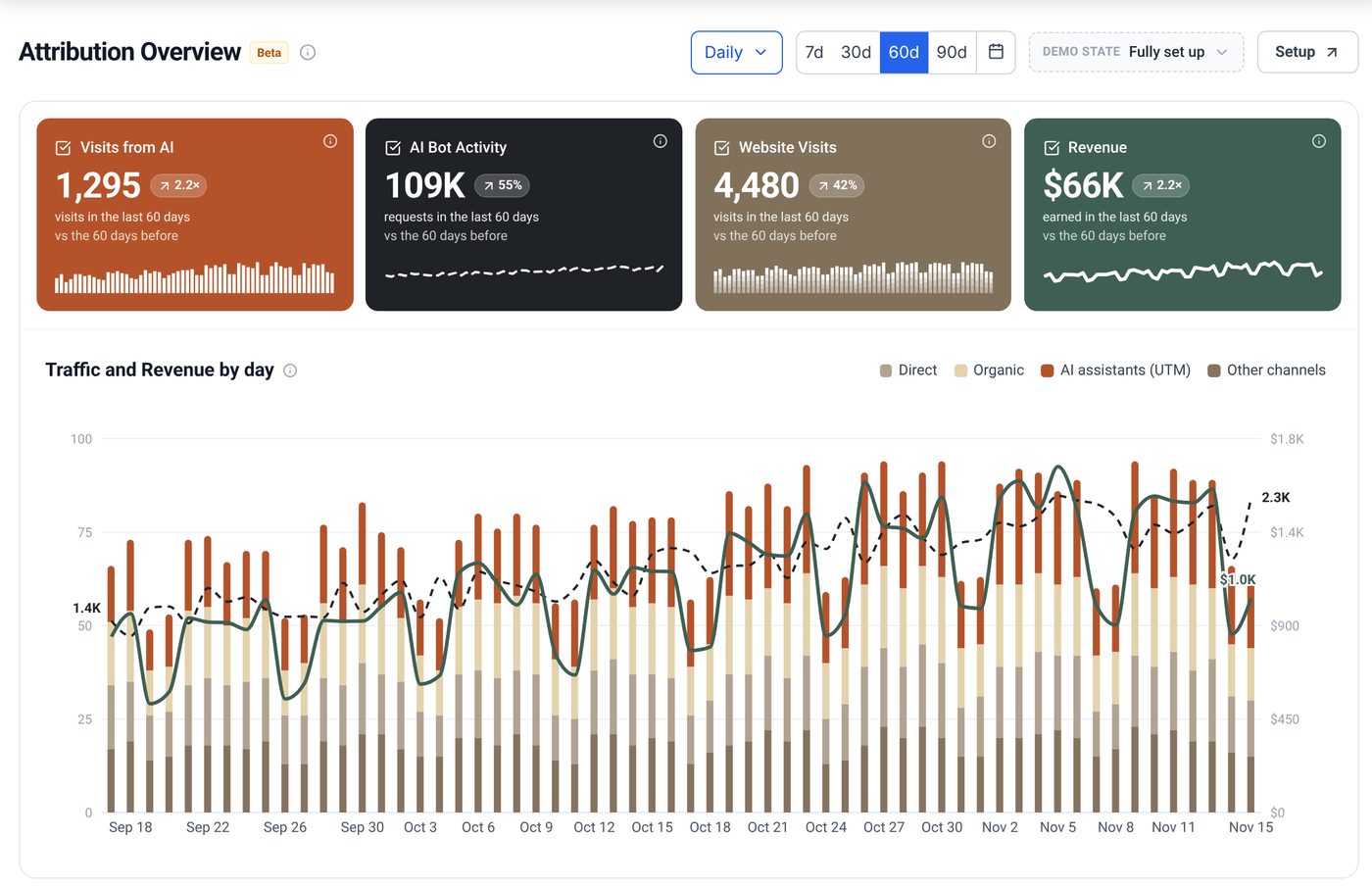
Open this first. It shows every layer on one screen, so it tells you quickly if a source is missing. Check the four numbers at the top, then compare the bars with the green line.
- Good sign: all four numbers are above zero, and AI visits rise and fall with revenue.
- Warning sign: a zero in one number. Visits need Google Analytics, bot activity needs a crawler source and revenue needs billing. Go back to the health check.
 1234
- 1Four numbers: visits from AI, bot activity, website visits and revenue. Check all four are above zero.
- 2Bars are visits and the green line is revenue. Look for AI visits moving with revenue.
- 3Channels in the chart: direct, organic, AI assistants and others.
- 4Pick the range and daily or weekly view.
Attribution Overview: the first report to open after setup.
Report 2 Revenue Attribution: is revenue joined to visits?
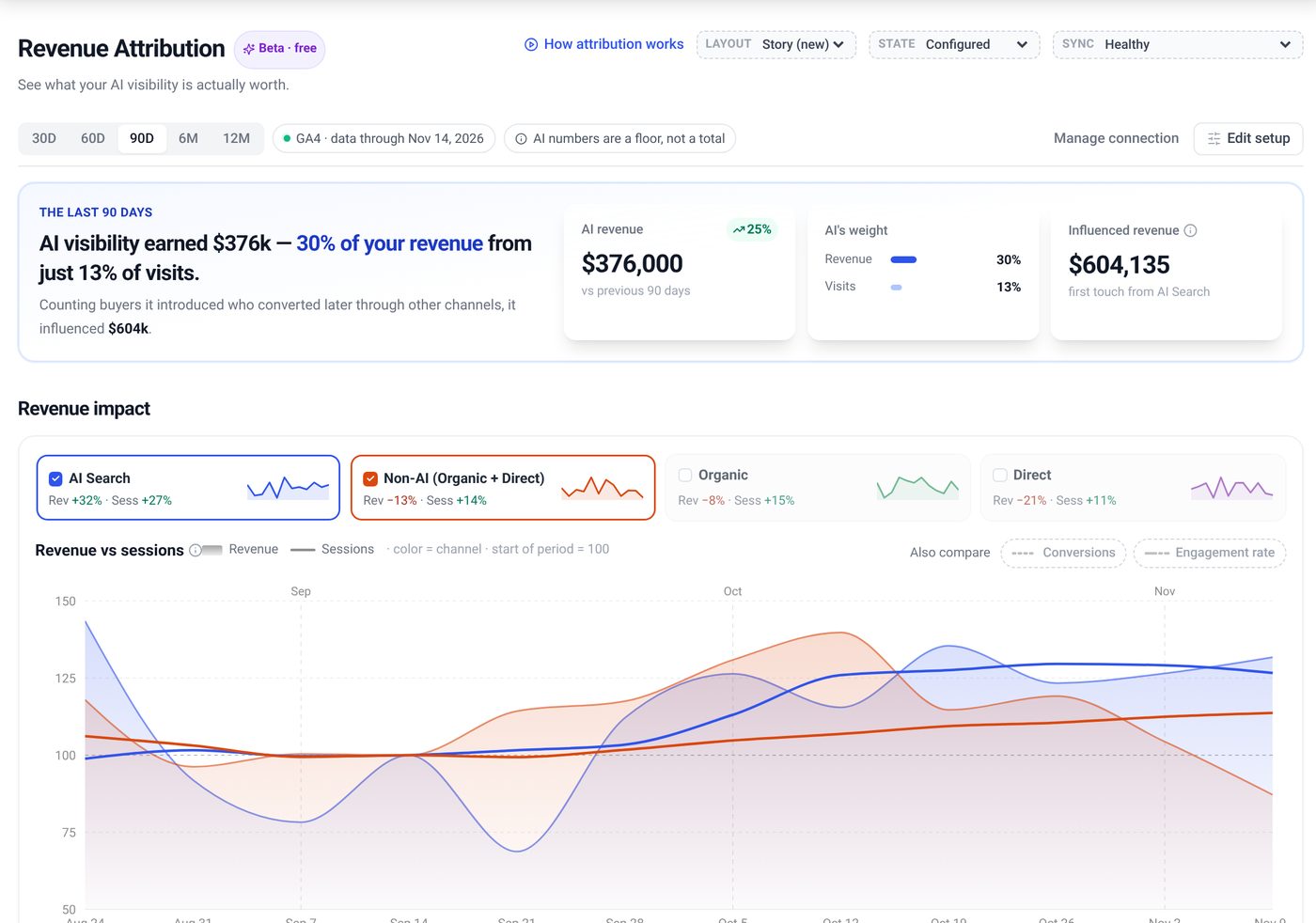
This report confirms that billing is connected and that revenue is matched to visits. Read the sentence at the top first. It gives AI revenue and its share of all revenue. Then read the three cards from left to right.
- AI revenue against the 90 days before shows if AI revenue is growing.
- AI weight sets share of revenue next to share of visits. When the revenue share is higher, AI visitors are worth more than an average visit.
- Influenced revenue counts buyers AI introduced who converted later. It is an estimate, so keep it on its own line, apart from AI-sourced revenue.
 1234
- 1One sentence with AI revenue and its share of all revenue.
- 2AI revenue against the 90 days before.
- 3AI weight: share of revenue next to share of visits.
- 4Influenced revenue: buyers AI introduced who converted later.
Revenue Attribution: confirms billing is connected and revenue is joined to visits.
Report 3 AI Crawl Attribution: are AI bots reading your site?
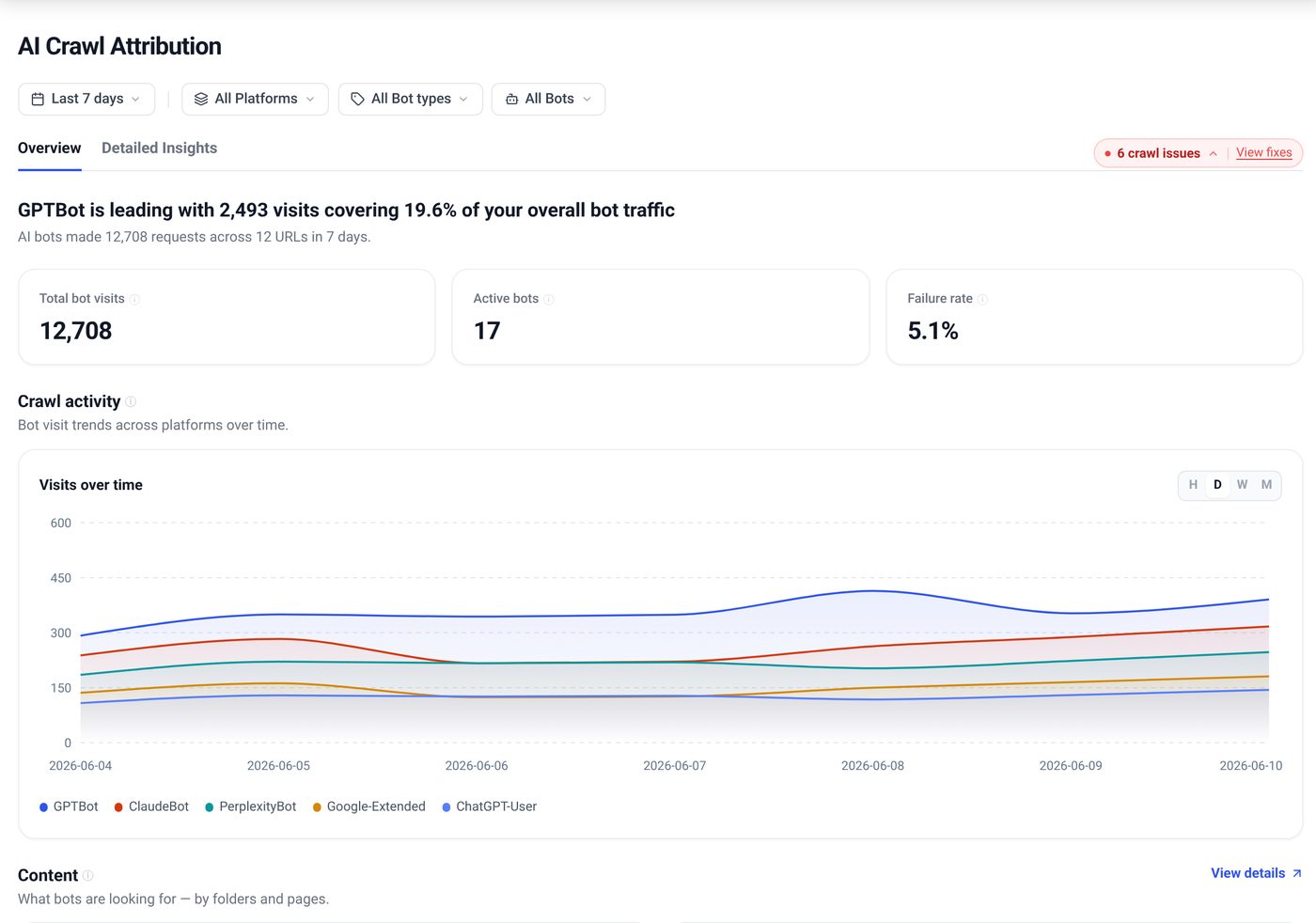
This report shows bot requests, not human visits. Use it to confirm that your crawler source (Cloudflare, Vercel or WordPress) is sending data and the add-on is on. Read the leading bot and its share first. Then read total bot visits, active bots and the failure rate.
- Good sign: several bots are active and the lines move over time.
- Warning sign: no bot visits at all, or a high failure rate. Check the crawl issues list and the crawler source.
 1234
- 1Which bot leads and its share of bot traffic.
- 2Total bot visits, active bots and failure rate.
- 3Visits over time, one line per bot.
- 4Crawl issues to fix.
AI Crawl Attribution: confirms your crawler source is sending bot requests.
If a report looks empty, work through four checks.
- 1
Open the health check
Look at the overall state and the list of sources that need attention.
- 2
Match the source to the report
Visits need Google Analytics. Bot activity needs a crawler source and the add-on switched on. Revenue needs billing.
- 3
Fix one source at a time
Reconnect, fix the permission or finish the missing step from lessons 6.1 and 6.2.
- 4
Wait for the sync, then recheck
A new connection shows setting up until its first sync finishes.
ThriveStack citedby runs your prompt panel across 10+ AI engines, reads server-log crawler hits, matches human visits to signups and reports AI-sourced and AI-influenced pipeline.
Check setup health and read your first reports, answered.
What does needs attention mean?
A source has a problem. The check lists it in a plain sentence, with the last sync time and a short reason.
Why is Revenue Attribution empty?
Billing may not be connected or may still be on the test connection. A test connection does not capture live revenue.
Why do AI numbers look low?
Some AI visits arrive with no tag and no referrer. The product labels AI numbers as a floor, not a total.
Sources for this lesson
Health states and coverage come from the ThriveStack citedby product, checked Nov 15, 2026. Screens are from the product demo state.